Have you ever struggled with CSS z-index not working as expected? The secret
lies in understanding stacking contexts - a fundamental CSS concept that
determines how elements overlap. Let's break it down!
What is a Stacking Context?
A stacking context is a conceptual layer system that determines the vertical order of elements. Think of it like a stack of transparent sheets:
1<div style={{ position: 'relative' }}>
2{/* Sheet 1 (background) */}
3<div
4  style={{
5    position: 'absolute',
6    backgroundColor: 'red',
7    width: '200px',
8    height: '200px',
9  }}
10/>
11
12{/* Sheet 2 (middle) */}
13
14<div
15style={{
16  position: "absolute",
17  backgroundColor: "blue",
18  width: "150px",
19  height: "150px",
20  top: "50px",
21  left: "50px",
22}}
23/>
24
25{/* Sheet 3 (foreground) */}
26
27<div
28  style={{
29    position: 'absolute',
30    backgroundColor: 'green',
31    width: '100px',
32    height: '100px',
33    top: '100px',
34    left: '100px',
35  }}
36/>
37</div>
Default behavior: Elements stack in this order (from bottom to top):
- Root element (html)
- Non-positioned elements in DOM order
- Positioned elements in DOM order
- Elements with
z-index
Visualizing Stacking Contexts
To better understand stacking contexts, here's a visual representation:
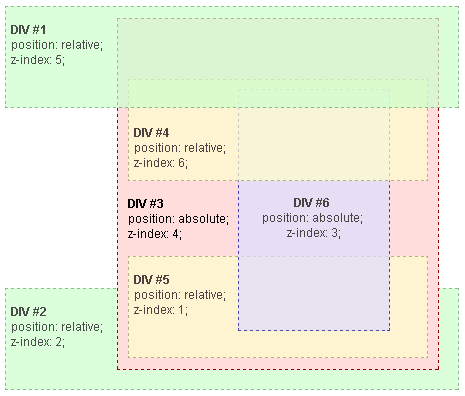
This image illustrates how elements are layered based on their stacking context
and z-index values.
Creating Stacking Contexts
Certain CSS properties create new stacking contexts. Here are common triggers:
1<div>
2{/* This creates a stacking context */}
3<div
4  style={{
5    position: 'relative',
6    zIndex: 0,
7    padding: '20px',
8    backgroundColor: '#eee',
9  }}
10>
11  <div
12    style={{
13      position: 'absolute',
14      zIndex: 100,
15      backgroundColor: 'yellow',
16      width: '50px',
17      height: '50px',
18    }}
19  />
20</div>
21
22{/* This element will overlap because of root context */}
23
24<div
25  style={{
26    position: 'relative',
27    zIndex: 1,
28    backgroundColor: 'pink',
29    marginTop: '-30px',
30  }}
31>
32  I'm on top!
33</div>
34</div>
Key properties that create stacking contexts:
position: absolute/fixedwithz-indexopacity < 1transform(any value except none)filter(non-none values)will-change(certain values)
The Hierarchy Hierarchy
Stacking contexts form a parent-child relationship. Children cannot escape their parent's context:
1<div style={{ position: 'relative', zIndex: 1 }}>
2{/* Parent context (z-index: 1) */}
3<div style={{
4  position: 'absolute',
5  zIndex: 100,
6  backgroundColor: 'rgba(255,0,0,0.5)',
7  width: '200px',
8  height: '200px'
9}}>
10  Parent Context
11
12  {/* Child context */}
13  <div style={{
14    position: 'absolute',
15    zIndex: 9999,
16    backgroundColor: 'blue',
17    width: '100px',
18    height: '100px',
19    top: '50px'
20  }}>
21    Child Context
22  </div>
23
24</div>
25</div>
26
27<div
28style={{
29  position: 'relative',
30  zIndex: 2,
31  backgroundColor: 'lime',
32  width: '150px',
33  height: '150px',
34  marginTop: '-200px',
35}}
36>
37Sibling Context
38</div>
39
In this example:
- The lime box (z-index: 2) appears on top
- Red parent (z-index: 1) is below
- Blue child (z-index: 9999) is still under lime box
Why? The child's high z-index only matters within its parent's context (z-index: 1).
Common Pitfalls & Solutions
Problem: "My z-index: 9999 isn't working!" Solution: Check if parent elements create a stacking context with lower z-index.
Problem: Unexpected overlap after adding opacity Solution: Remember
opacity < 1 creates new context!
1<div style={{ opacity: 0.99 }}>
2{/* New stacking context created */}
3<div
4  style={{
5    position: 'relative',
6    zIndex: 1,
7    backgroundColor: 'orange',
8  }}
9>
10  This z-index is now relative to the opacity container
11</div>
12</div>
Best Practices
- Minimize z-index usage - Use natural DOM order when possible
- Create clear layers - Use base z-index values (100, 200, etc.)
- Isolate components - Use
position: relativeat component root - Use CSS custom properties for consistent z-index management
1:root {
2--z-modal: 1000;
3--z-tooltip: 500;
4--z-navbar: 100;
5}
Debugging Tips
- Chrome DevTools → Elements panel → Check "Stacking Contexts" overlay
- Temporarily add
outline: 1px solid #f00;to visualize boundaries - Use 3D view in browser dev tools to see layers
Understanding stacking contexts will save you hours of layout frustration. Remember: it's not just about z-index, but about the entire layer hierarchy!
Happy coding!